Saturday, 2 June 2012

SMS SPOOFINF SERVICE


      SEND SMS FROM ANY NUMBER TO ANY NUMBER      


Well here I am sharing one amazing post about sms spoofing. Using this technique you can send SMS from any number to any number and you can also update the status of any facebook account if the victim have active that service.This post is educational purpose only I am not responsible for anything. 
fake-sms-sender

Lets start..
Smsglobal is an amazing website to send SMS. However, it is a premium site from Australia.But they only allow to send 25 fake SMS at the time of signing up there. So, you can send only 25 Fake SMS using this service . After that, you have to try signing in with a new number and Email ID.
just open this link http://smsglobal.com/signup/signup_page.php and sign up there.
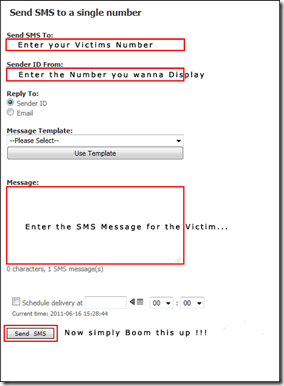
Now fill the form as shown below in the image.
fake sms 11 by hacks-crazy.blogspot.com
After signing in, you will receive your username and password on your phone.
  • Now login in your SMS global Account with your provided Username and Password. 
  • After loging in, you will see the welcome screen, just click on Send SMS to Number as shown below.
  • fake sms 22 by hacks-crazy.blogspot.com
First remove the sender ID while sending to send a spoofed SMS after that enter the mobile number of both the victim and now you can send a spoofed SMS as shown below.
fake sms 33 by hacks-crazy.blogspot.comSo, Enjoy Sending fake SMS to any of the number , and now you can update any buddy’s facebook status using this technique!!
Please do not misuse this trick, This article is just for educational purposes. I am not responsible for any consequences taking place!!!

LIST OF FACEBOOK KEYBOARD SHORTCUTS


LIST OF FACEBOOK KEYBOARD SHORTCUTS


Facebook has a small, but useful set of keyboard shortcuts you can use to navigate the social networking site. 

The shortcuts work best with Chrome in Windows andFirefox on Mac OS X, because they only need one modifier key, plus the shortcut key. Also keep in mind that the number shortcuts must be pressed from the number row; they don't work with the number pad.

Here are the keyboard shortcuts for Facebook:

Windows
Firefox modifier: Shift + Alt + #
Chrome modifier: Alt + #

Mac
Firefox modifier: Control + #
Chrome modifier: Control + Option + #
Safari modifier: Control + Option + #

Shortcuts
1 : home
2 : timeline/profile
3 : friends
4 : messages
5 : notifications
6 : general account settings
7 : privacy settings
8 : Facebook's Facebook page
9 : legal terms
0 : help center
m : new message
? : search

That's it. If you're wondering why Internet Explorer 9 was left out, it's because only the home and timeline shortcuts seem to work. If you want to use IE9 anyway, the modifier is Alt + #, then Enter.

HOW TO UPGRADE YOUR ANDROID PHONE


    TRICKS N TIPS ON HOW TO UPGRADE YOUR ANDROID PHONE


The biggest problem with the Androidplatform has been how slowly many phone makers release the latest version of the OS for their older models. It's also not unusual for them to never do so. (A company may not want to spend resources on phones they no longer sell; or, they and the carrier for a particular model may not agree on when to provide an update.) 

If you own such a neglected phone, and don't want to buy a new one, then your best shot is installing unofficial Android firmware on it.

The following is a primer on what you should know about the process of installing unauthorized Android firmware. Each phone can have its own unique steps for doing this, so you should follow instructions for your specific model.

1. INSTALL AT YOUR OWN RISK

Installing unofficial OS firmware on your phone will likely render whatever warranty from its maker you have on it null and void.

Thoroughly read the installation instructions for your specific phone model and then follow them carefully, taking time and patience. Though the odds of bricking your phone -- rendering it inoperable because of something going wrong during the install process -- is fairly low, it can happen and especially so if you rush through things.

Be aware that some features on your phone running its current version of Android may no longer be available after you successfully install a custom Android firmware. Other features could be buggy or have quirks.

2. TWO CHOICES: CYANOGENMOD OR MIUI

In the unofficial Android firmware development community, there are two major choices:CyanogenMod and MIUI. Both are built on the Android source code officially released by Google, and their latest versions are based on Android 2.3 (codenamed Gingerbread). As of this writing, the volunteer development teams of both projects are working to get new versions built on Android 4.0 ("Ice Cream Sandwich").

What's the difference between the two? CyanogenMod sticks with the basic, default components of Android that come with its source code release; its UI is "clean," devoid of unnecessary extras. MIUI completely overhauls the stock Android UI with one that resembles that of Apple's iOS.

If your Android phone is (or was) a popular model, it is probably supported by either theCyanogenMod or MIUI community.

If not, there is still a chance that somebody may be working on a port for your specific phone; search its model name in the official community forums for CyanogenMod or MIUI to see if there is such an on-going effort. (An excellent source to check is Android Forums.) But know that some or several features of your phone may not work if you install such an experimental, work-in-progress build of CyanogenMod or MIUI that is not officially sanctioned by that OS's community.

3. ROOT YOUR PHONE

Before you can start to do anything to your phone, you'll need to root it, which means basically to unlock the security settings put in place in the OS to prevent it from being altered. Check out GingerBreak to help you conveniently root your phone. 

Unfortunately, this app tool might not work on more recent Android phones. This guide provides a list of instructions for rooting several specific phone models.

4. BACK UP YOUR CURRENT FIRMWARE AND PHONE DATA

You really want to do this if you need to re-install your phone's original firmware and data later (e.g., something goes wrong when you install the unofficial Android firmware; you decide you don't like CyanogenMod or MIUI; or, you need to reactivate your phone with its carrier, something which you cannot do when running either of these unofficial OSs on it).

The easiest way to do a back-up is to install ClockworkMod ROM Manager on your phone. Run this app, and select "Reboot into Recovery" from its menu. This downloads and installs a recovery image profile for your phone, restarts it, and loads a plain-looking text menu, where you can select the back-up process.

After the copy of your phone's firmware and data is made, you can move it to a computer for safekeeping. Connect your phone by USB cable to your computer, then simply drag-and-drop the backup's folder (it's on your phone's SD card under the folder "clockworkmod") from your phone's SD card to the latter device.

5. PREPARE GOOGLE'S DEFAULT ANDROID APPS FOR INSTALLATION

If you're installing CyanogenMod: Unless you want to keep your to-be-upgraded phone clean of Google apps, you'll need to install them separately. CyanogenMod does not include the standard Google apps that typically come pre-installed on an Android phone. So you'll have to download a ZIP file that contains the installation packages for apps such as Google Search and, most importantly, the Android Market. Put this ZIP in the main root directory of your phone's SD card.


6. INSTALL THE CUSTOM ANDROID FIRMWARE

This is the big deal. Download the CyanogenMod or MIUI firmware designed specifically for your phone model, which comes in the form of a ZIP package, and save it in the root directory of your phone's SD card.

Once again, run the ClockworkMod ROM Manager app, and select "Reboot into Recovery." After your phone restarts into the ClockworkMod Recovery tool, you may need to wipe out its data and cache, and format its "/system" directory -- this depends on whether you are installing CyanogenMod or MIUI, so you should refer to the instructions that specifically are for your phone.

Next, you select the ZIP file of the custom Android firmware you placed in the root directory of your phone's SD card, and start the upgrade process. It normally takes less than two minutes. If you're upgrading to CyanogenMod: Don't reboot your phone just yet... repeat the above step for the ZIP file containing the Google Android apps.

You return to the main menu of the ClockworkMod Recovery tool and select to reboot your phone. After about 2 minutes, it should boot and then run on the custom Android firmware.

7. ENJOY YOUR NEW ANDROID PHONE!

Besides updating your phone to a more recent version of Android, CyanogenMod and MIUI can also give it new features and tools, which include better power management, Wi-Fi tethering, stronger security settings, and broader personal customization of the UI. Many users report their phones run faster with one of these unofficial OSs than with the version of Android that came originally installed on it.

ANONYMOUS OPERATING SYSTEM


                   ANONYMOUS OPERATING SYSTEM 


More than 26,000 people have downloaded an operating system which members of the Anonymous hacker group claim to have created.

The software is based on a version of the open-source operating system Linux and comes outfitted with lots of website sniffing and security tools.

The "official" Anonymous group has distanced itself from the software.

In a widely circulated tweet, AnonOps claimed the operating system was riddled with viruses.

Tool box

The operating system is available via the Source Forge website - a well-known repository for many custom code projects.

The 1.5GB download is based on Ubuntu - one of the most popular versions of the Linux operating system. The software's creators say they put it together for "education purposes to checking the security of web pages (sic)".

It asked people not to use it to destroy webpages.

Soon after the operating system became available, the AnonOps account on Twitter posted a message saying it was fake and "wrapped in trojans".

The creators of the OS denied it was infected with viruses adding that, in the world of open-source software, "there were no viruses".

Code check

After downloading and running the software, Rik Ferguson, director of Trend Micro's European security research efforts, said it was "a functional OS with a bunch of pre-installed tools that can be used for things like looking for [database] vulnerabilities or password cracking".

It also included tools such as Tor that can mask a person's online activities. In many ways, he said, it was a pale imitation of a version of Linux known as Back Track that also comes with many security tools already installed.

Mr Ferguson said he was starting work to find out if there were any viruses or booby-traps buried in the code.

Graham Cluley, senior researcher at hi-tech security firm Sophos, wondered who would be tempted to use it.

"Who would want to put their trust in a piece of unknown software written by unknown people on a webpage that they don't know is safe or not?" he asked.
He warned people to be very wary, adding that some hacktivists keen to support the work of Anonymous had been tricked earlier in the year into installing a booby-trapped attack tool.

"Folks would be wise to be very cautious," he said.

HOW TO DOWNLOAD AND INSTALL WINDOWS 8 AND REVIEW

Get ready, beta testers. Microsoft debuted Windows 8 Release Preview, which is one of the last steps before a final release of Windows 8 this fall. Versions of the operating system are available for both 32-bit and 64-bit systems.

Here's what Microsoft says is new or enhanced over previous beta releases:
  • New Bing-powered apps, including ones for travel, news, and sports
  • Improvements to Mail, Photos, and People apps
  • Increased Start personalization
  • Better multiple-monitor support
  • Better Windows Store navigation
  • New family safety and security functionality
  • Enhanced touch support for Internet Explorer 10
Warning

As with past betas of Windows 8, Microsoft advises users to not install the operating system on a computer used for day-to-day work. There's also no going back without wiping your hard drive.

download windows 8

You can't downgrade from Windows 8 since it cannot access the recovery partition of your hard drive. If you need to downgrade, ensure you have recovery disks readily available.

f you are already running Windows 8 Consumer Preview or Developer Preview, Microsoft says you can upgrade to Release Preview. There's a downside to upgrading, though: you cannot keep any of your files.

To run Windows 8 Release Preview, your test computer will need a processor with a clock speed of 1GHz or greater, 1GB (32-bit version), or 2GB (64-bit version) of RAM, at least 16GB (32-bit) or 20GB (64-bit) of available hard drive space, and a graphics card that supports DirectX 9 with a WDDM driver.

For select features, you will also need multitouch support, Internet access, and a screen resolution of at least 1024 pixels by 768 pixels.

Where to Download Windows 8 Release Preview

If you meet these requirements, head over to the download page on Microsoft's site and enter your email and country. Since the free Release Preview is available in 14 languages, chances are you'll find a version of the software available for your region.

Clicking 'Download' will start the download of the "Windows 8 Release Preview Setup." Running this application automates most of the set-up process, and selects the appropriate version of the preview for your machine. If you're a bit more daring and technologically savvy, Microsoft has provided direct links to ISO files.

These must be turned into installation media that are burned to a DVD drive or copied to a USB flash drive in order to complete the install. That's the installation process in a nutshell, but again--be wary. This is preview software, so keep mission critical work off your test PC.

Have you installed Windows 8 Release Preview? Did you previously install the Consumer Preview? Let us know your thoughts on this latest release and anything you notice that needs a little work.

Friday, 1 June 2012

7 ways to increase Torrent Speed


7 ways to increase Torrent Speed


The use of Bit Torrent is an efficient way to transfer files of just about any size quickly and efficiently. How this works is by breaking the huge files into smaller pieces and is from one or many of the different sources. This is one of the best ways to transfer bulky files quickly even when you are using a low bandwidth connection. There are many more things that you can do with Bit Torrent, but here we are going to discuss how to make this work much faster.
increase torrent speed
Here are some essential tips for the same,
  1. Start with your ISP:
All ISP has a preset maximum upload and download speed, and you cannot make your torrent work beyond this speed. All you can do is to use the best use of this upload and download speed even when the signal is weak. You can check the maximum speed that you can achieve by conducting a broadband speed test and compare with the DSLReports that comes with your uTorrent.
  1. Opt-In for healthy seeds and peers:
A peer is any computer participating           in downloading and uploading of torrent files along with that of yours. A seeder is one who has a complete copy of the file that is being shared across a torrent network. A leecher is the person who has joined the network recently and do not have most of the file that you or the peer has. This leecher becomes the seeder when they download the entire file and is able to share it across the network.  For getting high torrent speed, you need to increase the number of seeders to increase the chance of healthier and reception of higher speeds.
  1. Get through the firewall:
Many times, you will find the administrator or the firewall in your web browser is set to block and receive torrent files. The first thing that you need to do is to get appropriate permissions for downloading torrent files, and add this to your firewall, which will enhance the speed at which you can download torrent files. If the internet is through a router, then you have to set the torrent file to cross the barrier of the security of the router also.
  1. Go to a different port:
The default port for BitTorrent protocol is always between the numbers 6881-6999. This is because BitTorrent sharing will involve high bandwidth usage. However, this is possible that you can configure a different port for your torrent client and this has been best advised to set this number to somewhere around 10000.
  1. Limit your upload rate:
A peer to peer network is sharing alike on the same or similar platform and therefore you should be able to set your client’s upload speed rate to a maximum amount, which will usually be about 80 percent of your maximum upload speed that is being offered by your ISP. Keep this speed, as high as possible, but you have to play your cards well as the upload speed affects your download speed as well.
  1. Use your common sense:
If you understand the concept of how Bit Torrent works, then your common sense will automatically tell you that this is possible to view the individual files being downloaded and disable the ones that you are not in need off, which will  help you to speed up the process of downloading the files using Bit Torrent.
  1. Bandwidth and connections:
This is possible to set the maximum number of connections, maximum number of peers connected per torrent and number of slots per torrent so that you can decide on which numbers gives the maximum efficiency from your Bit Torrent files.
Now is that you have some tips on how to increase the speed of downloading while using Bit Torrent, why not try these tips out next time! Comments are appreciated!!

OFFLINE FOR SOME ONLINE FOR SOME


Hide From Some Facebook Friends


Hide from Some Facebook Friends

Appear Offline to Some of Your Friends on Facebook Chat
There might be the case when you don’t wish to chat with few peoples or in other words you want to chat with the selected one. If you get frustrated with the disturbance caused by these “No to Chat” people, in that case, Facebook provides you with the nice facility which enables you to choose the people with whom you don’t want to chat.
It’s a hidden feature which can be enabled by following these steps:
Step 1: Open your account on Facebook.
Step 2: Click on the “Chat” option which is present on the lower right side of your profile.
Step 3: There you will find two options. Choose “Friend List”.
Step 4: There you will find an option of creating a new list. Name it, for example, “Blacklisted”.
Step 6: Now, select or write the names of the people with whom you don’t want to chat.
Step 7: Set the status as offline for this chosen list.

TO KNOW ANYONE USED YOUR PC IN YOU ABSENCE/


Has Someone Secretly Used Your Pc In Your Absence?


???????

Has someone been snooping around your PC without your knowledge. If your computer contains some confidential or private data. A password is a good option. However, if someone has been granted access to your PC or you don’t have a password, you might need to see if someone accessed your PC.   In that case, you can simply keep a check on the use of computer in your absence. Here are the steps to follow:

Step 1: Type “eventvwr.msc” in “Run” under “Start’


Step2: Now, on the left side, you will see “system”. Click on it.

Step3: Now just search for the date and time when your computer according to you should be off.


Step4: Now click two times on the event that has occurred during the off time and all the details will be displayed.


Step5: Also, the time period for which the computer was used can also be noted down.